Introduction
Last week, I wanted a fully offline AI setup. So no VPS bills, no latency (almost) and total privacy. So I settled on LM Studio’s Mac app and the community Qwen3-4B-GGUF model (≈2.5 GB, Apache 2.0). If you’re on beefier hardware or a VPS, feel free to explore larger models. And remember, Cline integrates with popular API providers like OpenAI, Anthropic, and more, so you’re never locked in.
Prerequisites
- Mac OS
- Familiarity with CLI and GUI tools
- VS Code installed (Download VS Code)
- Internet for initial downloads
1. Downloading and Installing LM Studio
- Visit lmstudio.ai and grab the Mac package.
- Open the .dmg and drag
LM Studio.appinto Applications. - Launch the app—no CLI needed, just a smooth IDE.
2. Installing and Loading Qwen3-4B-GGUF
- In the Models panel, click Browse Models.
- Search
lmstudio-community/Qwen3-4B-GGUFand install (≈2.5 GB). - Click Load, enable all GPU Offload cores, then reload the model.
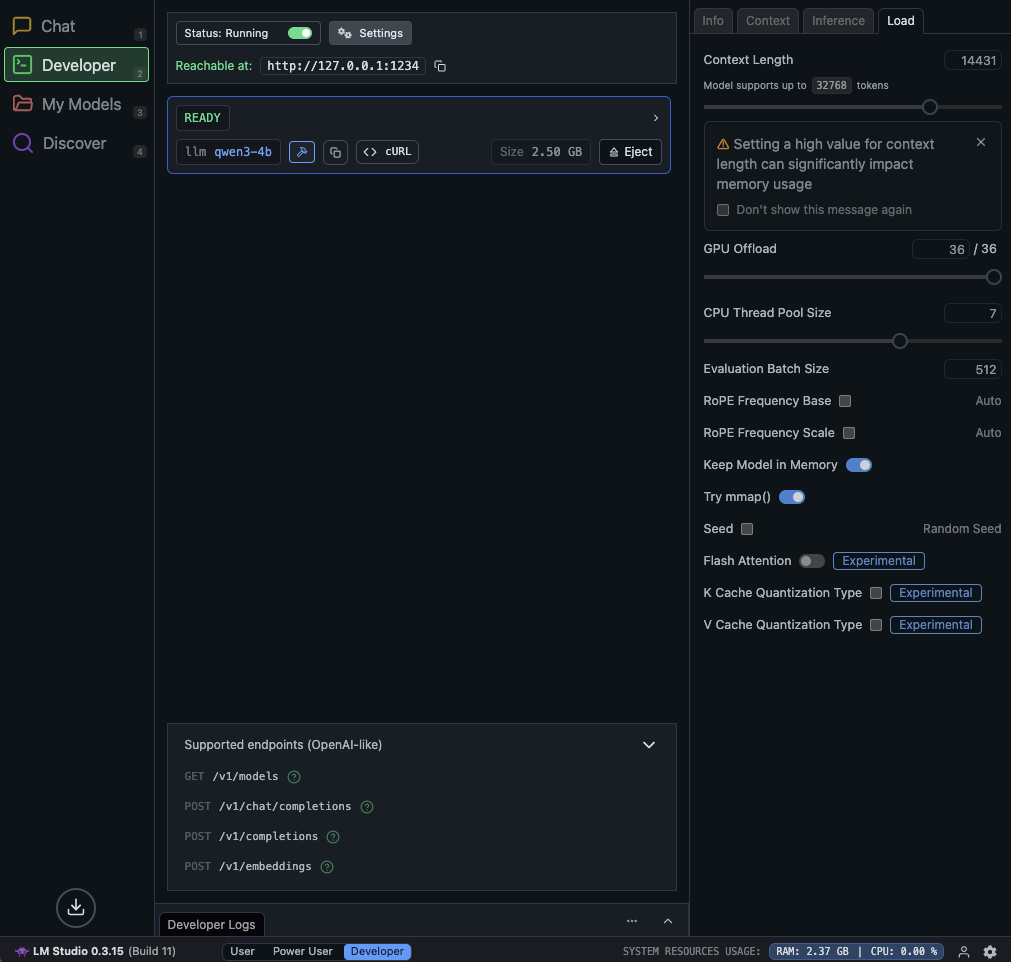
3. Enabling the Developer Server
- Open Developer ➔ Enable Server.
- Select
qwen3-4band Start Server (10–20 s load time). - Access via
http://127.0.0.1:1234.
4. Installing Cline in VS Code
- Go to cline.bot and install the VS Code extension.
- In VS Code Extensions (
⇧⌘X), search “Cline” and install.
5. Configuring Cline
- Open the Cline extension panel in VS Code.
- Login (Google or API); I used Google for free Cline models.
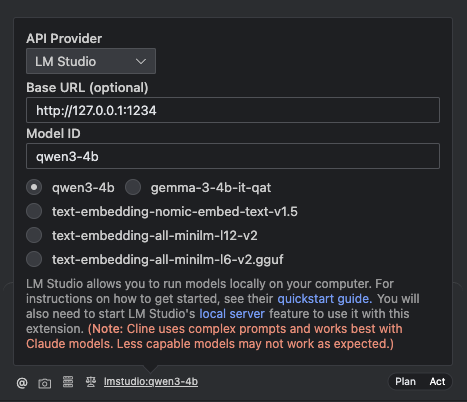
- Select “LM Studio” as provider.
- Set Base URL:
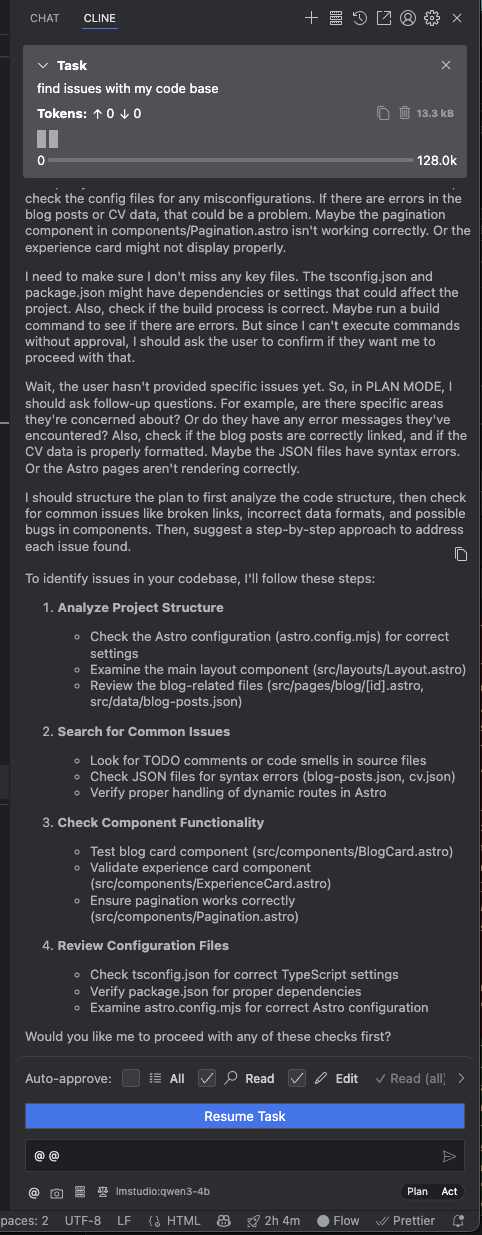
http://127.0.0.1:1234and Model ID:qwen3-4b. It may auto-detect loaded models. - You’re ready. Use Plan for chat or Act for agent mode (code, files, terminal access).
Screenshots
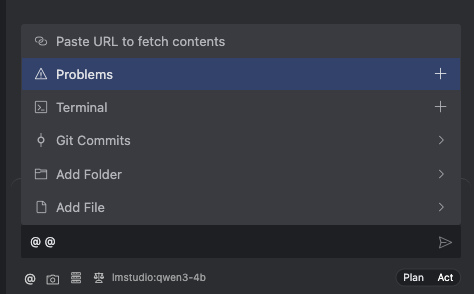
Here’s a visual look:
Final Thoughts
Running an offline LLM as a local AI companion changes the game. Instant responses, full privacy, and deep integration into your workflow, drafting emails, brainstorming, or automating scripts. Dive in and let your machine become your smartest helper.